Switching cloud storage mid-project feels like moving apartments. Everything looks fine on paper until your files scatter across two systems and nobody can find anything.
The Google Drive vs Dropbox debate keeps popping up because both platforms keep changing. Pricing shifts, sync speed differences, and new collaboration tools make last year’s comparison outdated.
A freelancer or small team lead choosing between Google Drive and Dropbox needs specific answers, not a feature checklist. The right pick depends on file types, team size, and how often large files move between people.
This comparison breaks down real performance differences for cloud storage in 2026 so the decision sticks longer than six months.
Google Drive vs Dropbox Pricing and Plans Compared
Pricing drives adoption more than features for anyone watching a budget. Google Drive starts cheaper with a gentler storage ramp, while Dropbox front-loads larger storage tiers at higher monthly costs.
The breakdown looks like this when set side by side:
| Category | Google Drive | Dropbox |
|---|---|---|
| Free tier | 15 GB shared across Gmail, Photos, and Drive | 2 GB, expandable through referrals |
| Entry paid plan | 100 GB at a low monthly rate | 2 TB at a higher monthly cost |
| Popular personal tier | 2 TB, shareable with family members | 2-3 TB tiers with Smart Sync |
| Business tier | Per-user pooled storage with Workspace integration | Shared team pools with admin controls |
| Extras | Gemini AI features on select plans | Built-in eSign and PDF editing |
Google Drive pricing scales well for students, writers, and small offices that mostly handle documents and spreadsheets. Dropbox’s higher subscription cost can pay for itself when teams edit large media files daily, because less time waiting on sync means more time working.
The 15 GB Free Tier Trap
That 15 GB free tier on Google Drive sounds generous until you realize it pools across Gmail, Google Photos, and Drive. A few years of email attachments and phone photo backups can eat through it fast. Dropbox’s 2 GB free tier is tiny, but at least it stays dedicated to file storage.

Paid Plans and Business Storage
On the paid side, Dropbox’s jump to 2 TB on its entry plan appeals to anyone working with video, photography, or design files. Google Drive’s 100 GB entry tier works better for document-heavy workflows where raw storage needs stay modest.
For business accounts, both offer pooled team storage, but Google bundles its full Workspace suite (Docs, Sheets, Meet, Gmail) into that price.
Sync Speed and Cloud Storage Performance
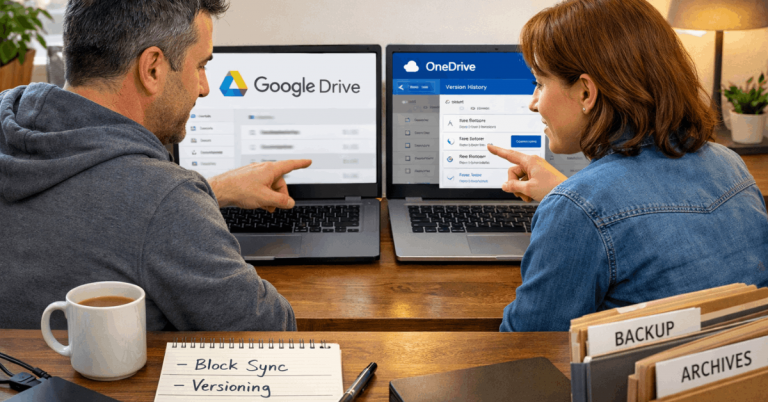
This is where the technical gap between these two platforms shows up in daily work. Dropbox uses block-level sync, which means only the changed portions of a file get uploaded on each save. Google Drive uploads the entire file again each time.
For a 50 MB Word document, the difference barely registers. For a 2 GB Premiere Pro project file where a single clip changed, the difference is enormous. Dropbox pushes the delta. Google Drive pushes the whole thing.

Block-Level Sync and LAN Sync
Dropbox also offers LAN sync, which routes file updates between devices on the same local network without sending traffic through the internet first.
An office with four workstations sharing project files can save serious bandwidth. Google Drive lacks this feature entirely, routing everything through Google’s servers regardless of whether the receiving machine sits three feet away.
Large File Performance
For teams handling 4K footage, RAW photography, CAD assemblies, or large datasets, cloud storage performance becomes a daily bottleneck.
I would pick Dropbox over Google Drive specifically for video production workflows, because block-level sync on a 10 GB timeline file can cut update times from minutes to seconds. That adds up fast across a week of edits.
The gap narrows considerably for typical office files under 100 MB. Both services feel comparable when uploading presentations, spreadsheets, and PDFs through their web apps.
Security, Privacy, and File Recovery
Both platforms encrypt data in transit and at rest and support multi-factor authentication, including physical security keys. The differences show up in how each platform handles incidents and recovery.
Dropbox Rewind lets you roll back an entire folder or account to a specific timestamp. After a ransomware attack, an accidental bulk delete, or a cascading rename disaster, this feature can recover everything to a known good state in one action.
Google Drive offers version history on individual files and a 30-day Trash window, which works for single-file recovery but struggles when hundreds of files get affected at once.
Zero-Knowledge Encryption
Neither platform offers zero-knowledge encryption by default. Both services can technically access your stored files. Google Workspace does offer client-side encryption where organizations hold their own keys, but this requires configuration and a third-party key management service.
Teams with strict privacy requirements should factor in the cost of additional encryption tools regardless of which platform they choose.
Data Residency for International Teams
International teams need to check data residency options during setup. Both services offer some geographic controls for enterprise accounts, but the specifics vary by plan tier.
Legal and compliance teams should confirm residency settings before migration rather than after, because moving data between regions post-setup creates headaches.
Search, Organization, and File Management
Google’s search is fast and intelligent. Natural language queries, advanced filters, and suggestions built into the Drive interface and Chrome make finding files quick even when folder discipline breaks down. The search works well because Google’s core strength has always been indexing and retrieval.
Dropbox takes a different approach through folder automations. Rules can sort, tag, rename, and file items automatically as soon as they land in a monitored folder.
Images get converted, watermarks get applied, and naming conventions stay consistent without manual cleanup. That structure-first approach appeals to teams who prefer organized project trees over searching through chaos.
Also read: 1Password vs Bitwarden: Pricing Comparison, Which Service Offers Better Value?
Picking Between Search and Structure
I think the common advice to pick Google Drive for search and Dropbox for structure misses something that matters: the reason your files are disorganized.
A team that names files poorly will still lose things in Google Drive because search only works when you remember roughly what you called something. And Dropbox automations only help if someone sets up the rules correctly in the first place.
The better question is whether your team already has naming conventions. Established conventions pair well with Dropbox automations. No conventions? Google’s AI-powered search will rescue you more often.
Sharing, Collaboration, and External Access
Google Drive sharing stays simple inside the Google identity system. Anyone with a Google account can view, comment, or edit files through a quick link. Live document editing in Google Docs, Sheets, and Slides still feels unmatched for multi-cursor writing and real-time suggestions.
Dropbox offers more granular external sharing controls: link passwords, expiration dates, and the ability to disable downloads. For agencies sending design assets or contracts to clients, those controls reduce the risk of files circulating beyond their intended audience.
Dropbox Replay for Media Teams
Dropbox Replay centralizes timestamped comments, annotations, and version comparisons for video, audio, images, and PDFs. Producers and editors can review work without shipping local copies. Google has no direct equivalent for media-specific review workflows.
Password-Protected Links
Google Drive does not offer password-protected public links as part of its default sharing tools. Dropbox does. For anyone regularly sharing files with people outside their organization, this gap matters. Shared links without passwords rely entirely on obscurity for security, which is a weak position when files contain sensitive client work.
Integrations and Ecosystem Fit
The ecosystem question often settles the debate faster than any feature comparison. Google Drive connects directly to Gmail, Calendar, Meet, and the Docs editors. Apps Script and native triggers inside Forms or Sheets make internal tooling possible without third-party services.
Dropbox connects well to Microsoft 365, Adobe Creative Cloud, Slack, and Zoom. Agencies and engineering teams that work across multiple vendors tend to find Dropbox’s API, webhooks, and integration library more flexible for routing assets between systems.
Teams already deep inside Google Workspace will find Drive’s integration seamless and free of friction. Teams running mixed software stacks will get more mileage from Dropbox’s broader third-party connections.
A few scenarios where one platform pulls clearly ahead:
- Video teams editing multi-gigabyte timelines: Dropbox’s block-level sync, Replay commenting, and large file transfer speed give it a clear edge
- Content teams writing and approving copy: Google Docs’ multi-editor experience and simple internal sharing work faster for text-based collaboration
- Agencies sending deliverables to external clients: Dropbox’s password-protected links, expiration dates, and folder automations reduce risk and keep intake organized
- Cost-conscious startups centralizing documents: Google Drive’s lower entry pricing, family sharing options, and strong search handle document-heavy workflows at less cost
- Linux users needing desktop sync: Dropbox has an official Linux client; Google Drive does not offer one
My Contrarian Take on Running Both Platforms
The popular recommendation across every comparison article is to run both: store documents in Google Drive and media files in Dropbox. I think this hybrid approach creates more problems than it solves for teams under 10 people.
Running two cloud storage platforms means two billing cycles, two sets of sharing permissions, two places to check when a file goes missing, and two admin dashboards to monitor.
The cognitive overhead of remembering which platform holds which file type erodes whatever efficiency each platform provides on its own. A single platform, picked to match your dominant file type, keeps operations simpler and cheaper.
Larger organizations with dedicated IT teams can manage the complexity. A five-person creative agency? Pick one and commit.
Questions People Ask About Google Drive vs Dropbox
Q: Is Dropbox still faster than Google Drive for syncing files?
Dropbox remains faster for large file sync due to block-level sync technology that transfers only changed portions of a file. For small documents under 100 MB, both platforms perform similarly in upload and download speeds.
Q: Can I use Google Drive on Linux?
Google does not offer an official desktop sync client for Linux as of 2026. Dropbox provides a native Linux client that handles sync and selective folder management. Third-party tools exist for Google Drive on Linux, but they lack official support.
Q: Which is more secure, Google Drive or Dropbox?
Both encrypt files in transit and at rest and support multi-factor authentication. Dropbox Rewind offers account-wide rollback after incidents, while Google Workspace provides client-side encryption for organizations that want to hold their own encryption keys. Neither offers zero-knowledge encryption by default.
Q: Is Google Drive cheaper than Dropbox for teams?
Google Drive’s entry pricing starts lower, especially when bundled with Google Workspace. Dropbox costs more per month but includes larger base storage and tools like eSign and PDF editing that would cost extra elsewhere. Total cost depends on which additional tools each team would need to buy separately.
Q: Can I share Dropbox files with someone who doesn’t have an account?
Dropbox allows sharing via password-protected links that don’t require the recipient to have a Dropbox account. Google Drive also allows link sharing to non-users, but without the option to set a password on the shared link.
Conclusion
Dropbox wins on sync speed, file recovery, and structured organization for media-heavy teams in 2026. Google Drive wins on pricing, search intelligence, and real-time document editing for text-focused workflows.
The hybrid approach works for large organizations, but smaller teams save time and money picking one. Pick based on your dominant file type, not a feature checklist that looks good on paper.