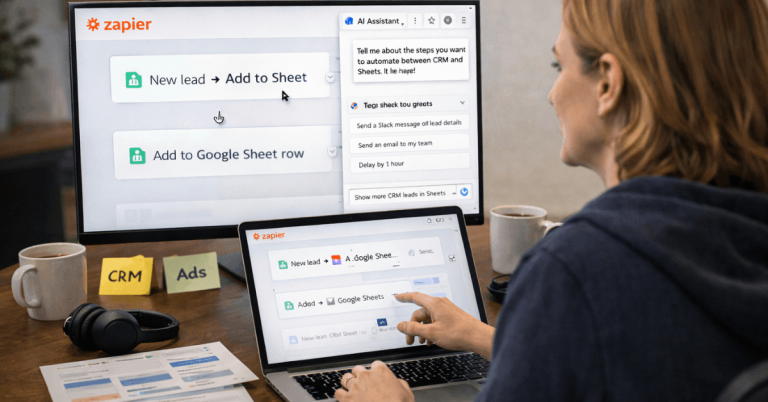
The same online service can feel very different on mobile and desktop. Mobile usually supports quick checks, fast replies, and short updates, while desktop gives more space for setup, editing, and detailed work.
A fair comparison should look at real tasks instead of judging only by design or feature lists. The best platform is the one that fits how you actually work every day.
Define a Fair Mobile vs Desktop Test
A fair test needs clear rules before you compare both platforms. Use the same account, plan tier, files, workflow, and permission level on mobile and desktop.
If the test changes too much between devices, the results become less useful. The goal is to measure real friction, not random differences caused by setup.
Keep the Conditions Consistent
Use the same account and plan for both platforms. Keep app versions, browser versions, device settings, and background activity as stable as possible.
Network differences should be logged, especially if mobile uses data while desktop uses Wi-Fi. This makes it easier to explain delays, sync issues, or failed actions.
Repeat the Same Tasks
The same tasks should be completed in the same order on mobile and desktop. This may include checking updates, searching for an item, editing content, uploading a file, and sending a comment.
Repeating the same workflow shows where one platform saves time or creates extra steps. Multiple test rounds are better than one quick impression.
What Mobile Does Best in Real Use?
Mobile is strongest when speed and access matter more than deep control. It works well for short sessions, quick checks, approvals, and urgent replies.
Notifications also make mobile useful when you need to respond without opening a full workspace. For many users, mobile is the best platform for staying connected between longer work sessions.
Mobile Works for Fast Actions
Mobile is useful when you need to check status, review alerts, or approve something quickly. Push notifications in tools such as Slack can help you act on time-sensitive items before they become delays.
Mobile also works well for capturing photos, scanning documents, uploading media, or leaving short comments. These small actions are where mobile often feels faster than desktop.
Also Read: Real-Use Testing on Slow Connections

Mobile Has Clear Limits
Mobile becomes harder to use when the task needs many fields, detailed settings, or heavy editing. Small screens can hide important controls behind menus or extra taps.
Long typing, bulk actions, and complex file handling may also feel slower. Mobile is convenient, but it is not always the best place for deep work.
What Desktop Does Best in Real Use?
Desktop is strongest when the work requires control, visibility, and longer focus. A larger screen makes it easier to compare information, manage multiple windows, and handle detailed settings.
Keyboard shortcuts, drag-and-drop, and full menus can reduce friction during heavy work. For setup, editing, reporting, and bulk changes, desktop usually feels more dependable.
Desktop Supports Deep Work
Desktop is better for long sessions because it gives users more space to think and work. It is easier to open multiple tabs, compare files, manage settings, and review detailed information.
Bulk edits, imports, exports, and advanced searches usually feel smoother on a full screen. This makes desktop the better choice for structured work that needs accuracy.
Desktop Can Add Its Own Friction
Desktop is not always simpler just because it has more space. Some services place too many controls, menus, dashboards, and settings on the screen at once.
This can make basic actions feel slower if the interface is cluttered. A desktop experience is strongest when the extra control does not turn into extra confusion.
Compare Performance, Sync, and Security
Mobile and desktop should be compared by what users actually feel during normal work. Load time, time-to-action, stability, sync delay, and recovery after failures matter more than surface-level design.
Security and privacy also affect daily use because login prompts, permissions, and session controls can either protect or slow the workflow. A good comparison checks both convenience and reliability.

Measure Speed and Stability
Track how long it takes to complete the same key task on each platform. Watch for crashes, freezes, forced refreshes, slow uploads, or screens that take too long to become usable.
Mobile testing should include battery drain, heat, and app switching behavior. Desktop testing should include browser load, CPU or memory strain, and performance during longer sessions.
Check Sync and Account Safety
Cross-device sync is one of the most important parts of a mobile vs desktop test. Make a change on one device and check how quickly it appears on the other.
Also test what happens when edits overlap, uploads fail, or the session times out. Security checks should include login friction, device management, permission prompts, and the ability to log out of other sessions.
Use a Simple Testing Checklist
A practical checklist helps users compare both platforms without guessing. It also keeps the test focused on tasks that happen every day, not rare edge cases.
The checklist should be short enough to repeat but detailed enough to reveal friction. After a few rounds, the better platform for each task usually becomes clear.
Use this quick checklist before choosing your main platform:
- Pick five daily tasks you repeat often.
- Use the same files, records, and inputs on both platforms.
- Run the test three times and average the results.
- Track errors, crashes, delays, and sync issues.
- Decide which platform needs fewer workarounds.
Choose Based on Daily Tasks
The right choice depends on what you do most often. If your work is mostly checking alerts, replying, approving, and capturing quick updates, mobile may be enough.
If your work includes setup, configuration, bulk edits, and detailed reviews, desktop will likely be stronger. The best decision comes from repeated tasks, not from rare situations.
Use a Hybrid Workflow When It Fits
Many users get the best result by splitting work between mobile and desktop. Mobile can handle fast reactions, short approvals, photo uploads, and quick comments.
Desktop can handle setup, detailed editing, reporting, and complex organization. A hybrid workflow works well when each platform is used for its strongest tasks.
Final Verdict on Mobile vs Desktop
Mobile and desktop should be treated as two different experiences, not two versions of the same workflow. Mobile is best for fast access and short actions, while desktop is better for control, visibility, and deeper work.
Test both platforms with the same tasks before committing to one as your main workspace. Choose the option that stays stable, syncs cleanly, and supports your daily routine with fewer workarounds.