Every comparison article about Zoom vs Google Meet ends with “it depends on your needs.” That non-answer has been recycled for years now.
The problem is that picking the wrong video platform costs more than a monthly subscription. It costs meeting time, host confidence, and audience trust during calls that matter.
A Zoom vs Google Meet decision should start with one question most teams never ask: what happens when your meetings grow beyond your current setup?
This breakdown is built for the team lead or ops manager choosing a platform for a growing team, not someone comparing free tiers for personal use.
How Zoom and Google Meet Compare on Limits in 2026
The numbers between these two platforms shift depending on which plan tier and which add-ons are active. That makes direct comparison tricky, because a blanket statement like “Zoom supports more participants” can be wrong depending on what edition of Google Workspace or Zoom is on the table.
The figures below come from public documentation as of early 2026.
| Feature | Google Meet | Zoom |
|---|---|---|
| Participant cap (paid tiers) | Up to 1,000 on eligible Workspace plans | 100 on Pro, 300 on Business, higher via add-on |
| Free meeting length | Group calls up to 60 minutes | 40 minutes |
| Paid meeting length | Up to 24 hours | Up to 30 hours |
| Free plan recording | Not available | Local recording available |
| AI features (paid) | Gemini available as add-on | AI Companion included |
The standout detail: Zoom includes AI Companion on all paid plans, while Google Workspace customers may need to confirm whether Gemini is bundled or sold separately depending on their contract edition.
Free Tier Differences That Change the Decision
The free tier gap between these platforms tells a different story than the paid plans. Meet gives 60-minute group calls on the free plan but zero recording capability. Zoom caps free meetings at 40 minutes but allows local recording.

So which free tier wins? That depends on what matters more: longer calls or the ability to save them. A team doing internal standups that never need a recording will prefer Meet’s extra 20 minutes. A freelancer who records client calls to reference later needs Zoom’s local save, even if the session is shorter.
Paid Plan Pricing and What Comes Bundled
Google Workspace pricing bundles Meet with Gmail, Drive, Docs, and admin security features across Business Starter, Standard, and Plus tiers. That bundling matters if your team already pays for Workspace, because Meet comes included at no extra video-specific cost.
Zoom pricing starts at free, then moves to Pro and Business tiers with separate add-ons for Large Meeting, Webinars, and Events. The add-on model means your bill can climb fast once you start bolting on features.
I would argue that Zoom’s per-feature pricing is more transparent than Workspace’s bundled approach, because you see exactly what each capability costs rather than wondering what your edition includes.
AI Meeting Features: Gemini vs Zoom AI Companion
AI in video calls has gone from gimmick to daily workflow tool in 2026. Both platforms now offer AI-generated summaries, action items, and meeting notes, but the delivery model is different enough to change your budget math.
How Zoom AI Companion Works
Zoom AI Companion is included in all paid Zoom plans at no extra charge. It generates meeting summaries, suggests action items, and answers in-meeting questions. Zoom has continued adding agent-style upgrades that handle follow-up tasks after the call ends.
The included pricing model means a Zoom Pro subscriber gets AI features without an additional line item. For teams that would otherwise pay for a separate AI note-taking tool, this bundling can offset some of Zoom’s higher per-seat cost.
How Gemini Works on Google Meet
Gemini on Meet handles notes, summaries, and translated captions. But availability and pricing depend on the Workspace edition. Some enterprise contracts include Gemini. Others sell it as a separate add-on.
Budget planners should check their specific Workspace contract before assuming AI features are included.
I think the assumption that “Google gives you everything in one bundle” breaks down specifically on the Gemini question, because I’ve seen Workspace Business Standard listed without Gemini bundled on Google’s own pricing page.
Host Controls and Security on Zoom vs Google Meet
The gap between Zoom and Google Meet gets wider when meetings involve outside participants. This section matters if your calls include clients, vendors, or public attendees.
Zoom’s Granular Host Controls
Zoom gives hosts a deep set of controls during live sessions:
- Waiting rooms that screen attendees before they enter
- Co-host assignments that distribute moderation across team members
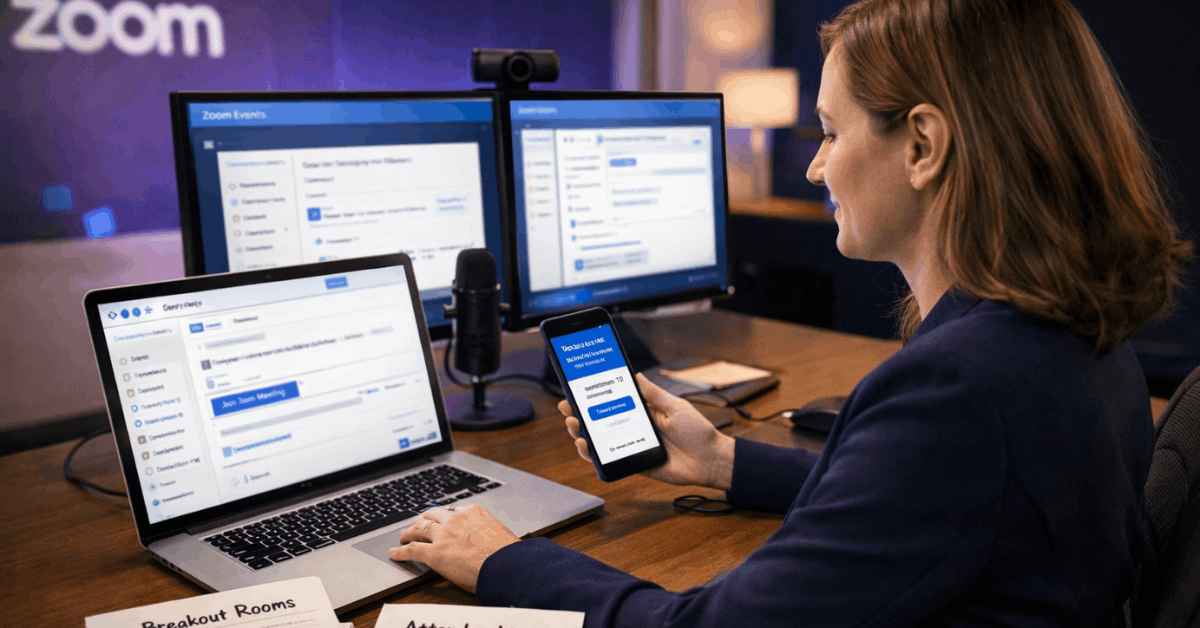
- Breakout rooms with pre-assignment and timer options
- Screen-share policies that restrict sharing to hosts only or allow all participants
These tools make a real difference when running training sessions, client workshops, or public-facing events. A disruptive participant in a Zoom webinar can be moved to a waiting room without ending the session for everyone else.
Also read: Zapier vs Make: Integration Comparison Across Popular Tools
Google Meet’s Simpler Security Model
Meet keeps controls minimal: the host can mute participants, remove them, and lock the meeting. That covers internal team syncs where everyone already knows each other. But for external-facing calls, the lack of waiting rooms and breakout rooms can feel limiting.
Both platforms support encryption in transit and enterprise admin controls. For industries with specific compliance requirements like healthcare or finance, verify each platform’s security features against your internal policy rather than assuming they match.
Where Google Meet Wins: Ecosystem and Speed
Teams that live inside Calendar, Gmail, and Drive will notice that Meet joins feel faster. One click on a calendar event opens the call in a browser tab. No app download, no client update prompt, no separate login.
Calendar Integration and Browser-Based Joining
Calendar-native scheduling is Meet’s biggest practical advantage. A meeting link auto-generates when you create a Google Calendar event. Guests click it and land in the call within seconds. Zoom requires either the desktop client or a browser join that occasionally prompts for an install.
For teams that rotate between devices and networks frequently, Meet’s browser-first approach reduces friction. The tradeoff: Zoom’s desktop client tends to be steadier under heavy load and exposes more settings up front.
Co-Editing During Calls
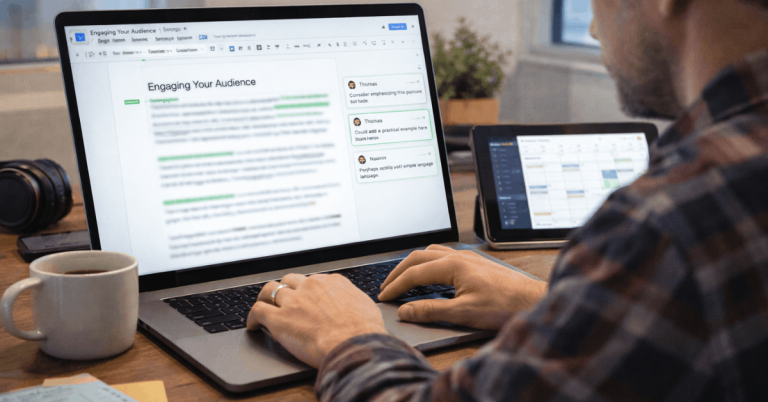
Meet allows co-editing Google Docs, Sheets, and Slides during a live call. Recordings save directly to Google Drive on eligible paid plans. This tight connection between the call and the file system reduces the need to switch between apps.
Zoom’s answer to this is marketplace integrations for project management, CRM, and design tools. Zoom also has whiteboarding built in, while Google’s Jamboard has wound down.
Meet now points users toward partner tools like FigJam, Miro, and Lucidspark for collaborative drawing and brainstorming.
Where Zoom Wins: Webinars, Events, and Large Audiences
Zoom dominates the event and webinar category. Registration pages, branded experiences, moderated Q&A, post-event analytics, and scalable attendee caps are all available through Zoom Webinars, Sessions, and Events add-ons.
These tools suit product launches, conferences, and training programs that need backstage roles and exhibitor management.
Google Meet’s Event Limitations
Meet can handle large meetings and internal live streaming on eligible Workspace plans. Streaming to YouTube is available when enabled, which covers company town halls or public briefings where interaction is limited.
But if your event needs sponsor placements, attendee registration with custom fields, or backstage prep rooms, Meet does not have those features. Teams running more than one external event per quarter should default to Zoom for this reason alone.
Recording and Storage: A Hidden Cost Comparison
Meet recordings save to Google Drive, which simplifies access control and retention policies for Workspace admins. The catch: free Meet does not record at all.
Zoom allows local recording on the free plan and cloud recording on paid tiers. Cloud storage on Zoom Pro and Business comes with limited capacity unless upgraded.
The storage math matters, because Workspace Business editions provide pooled storage per user, and that pool also holds all your Docs, Sheets, and email attachments.
Confirm storage quotas, data residency rules, and retention settings with your legal and IT teams before committing to either platform. Running out of Drive storage because of meeting recordings is a real problem that surfaces about six months into heavy usage.
My Contrarian Take on the “Just Use Meet” Advice
The common advice is simple: if your team already uses Google Workspace, default to Google Meet. I disagree with this for teams that run more than 2 external-facing meetings per week.
The moment outside participants enter the picture, Meet’s limited host controls become a liability. No waiting rooms, no breakout rooms, no granular screen-share policies. The admin simplicity that works for internal calls turns into a gap when clients or the public are on the line.
A team on Workspace can still use Zoom for external calls while keeping Meet for internal syncs.
Running two platforms sounds messy, but the alternative is running a client-facing meeting where you can’t pre-screen attendees or split participants into working groups. That costs more in lost credibility than a second subscription.
Scenario-Based Recommendations for Zoom vs Google Meet
The right pick depends on how your team uses video calls day to day. Quick reference for common setups:
- Startup or SMB inside Google Workspace: Meet covers daily standups and internal calls without extra cost
- Training, workshops, or client-facing sessions: Zoom’s breakout rooms, polls, and whiteboards keep engagement high
- Public webinars or conferences: Zoom’s registration, branding, and event analytics are built for this
- Mixed SaaS stack with CRM and PM tools: Zoom’s marketplace integrations connect to a broader set of third-party apps
The one scenario where both platforms fall short: post-meeting accountability. Neither Zoom nor Meet fully solves the problem of turning meeting notes into assigned tasks without a separate tool.
Consider pairing either platform with a dedicated meeting assistant from Google Workspace Marketplace or Zoom’s app ecosystem if follow-through across teams is a recurring pain point.
Questions People Ask About Zoom vs Google Meet
Q: Can I use Zoom and Google Meet at the same time for different meeting types?
Absolutely. Many teams use Meet for quick internal calls and Zoom for client-facing sessions or events. The extra subscription cost is usually small compared to the flexibility gained.
Q: Does Google Meet support 1080p video in group calls?
Meet now supports 1080p beyond 1:1 sessions for supported hardware, but the setting is disabled by default. An admin or the user needs to toggle it on, and some accounts may require a support request to enable it.
Q: Is Zoom AI Companion free on all paid plans?
Zoom AI Companion is included at no extra cost on paid plans as of 2026. This covers meeting summaries, action items, and in-meeting AI answers without a separate add-on purchase.
Q: Which platform is better for recording meetings on a free plan?
Zoom wins this one clearly. Free Zoom allows local recording to your device. Free Google Meet has no recording option at all, which forces teams into a paid Workspace plan just to save a call.
Q: Does Google Meet work without installing an app?
Meet runs entirely in the browser, so there is no mandatory app install. Zoom offers a browser join option too, but its desktop client provides a smoother experience and more features during the call.
Conclusion
The Zoom vs Google Meet decision comes down to how your meetings look six months from now. Meet handles internal calls with zero friction inside Google’s ecosystem.
Zoom earns its price when host control, event features, and external-facing credibility matter. Pick based on where your meetings are headed, not where they are today.