
Picking cloud storage feels simple until a sync failure eats three hours of your Tuesday afternoon. That panic changes how you evaluate Google Drive vs OneDrive permanently.
Every comparison article dumps the same spec table and calls it a day. But the specs barely matter if your files vanish during a migration or your email stops working because a storage quota hit you sideways.
This Google Drive vs OneDrive breakdown targets one specific reader: the small business operator running a 5-to-25 person team, locked into a multi-year contract, and needing storage that ages well past the honeymoon phase.
The things that break at month 14 are different from the things that impress at month one. That gap is where the real decision hides.
Google Drive vs OneDrive Storage and Pricing Compared
Price per gigabyte looks straightforward until renewal season arrives and the math starts shifting. Both platforms have changed their pricing structures heading into 2026, and the differences between personal tiers and business plans are bigger than the marketing pages suggest.
Free and Personal Tiers
Google hands every personal account 15 GB of free storage. OneDrive gives 5 GB free. That 10 GB gap sounds small, but it compounds fast when Gmail attachments, Google Photos, and Drive documents all share the same 15 GB pool.
On the paid side, both offer a 100 GB entry tier. Google’s 2 TB plan sits at $9.99 per month, and an AI Pro tier bundles Gemini features at that same 2 TB. Microsoft bundles 1 TB with Microsoft 365 Personal, and families can pool up to 6 TB across six users, which is a solid deal for households.
Business Plan Math
Business pricing is where the comparison gets interesting. Microsoft 365 Business Basic gives each user 1 TB for $6 per seat per month on an annual plan. Google Workspace Business Starter typically gives 30 GB pooled per user at roughly $6 to $7 per seat per month, with higher tiers jumping to 2 TB and 5 TB pooled.
I would pick Microsoft at the entry business tier purely on storage per dollar, based on that 1 TB versus 30 GB gap at nearly the same price point. Teams budgeting for multi-year contracts should also watch for announced 2026 price changes on Microsoft 365 commercial plans.
| Feature | Google Drive | OneDrive |
|---|---|---|
| Free storage | 15 GB | 5 GB |
| Consumer 2 TB plan | $9.99/month | 1 TB bundled with Microsoft 365 Personal |
| Business entry plan | ~$6-7/user/month, 30 GB pooled | $6/user/month, 1 TB per user |
| Family sharing | Up to 2 TB per member | Up to 6 TB across 6 users |
The takeaway: Microsoft gives more raw storage per dollar at the business entry level, while Google gives triple the free personal space.
The Outlook Storage Trap Nobody Warns About
One detail buried in Microsoft’s unified storage policy deserves its own callout. Outlook.com attachments now count against the same OneDrive quota. That means if your OneDrive fills up, your email sending and receiving can get disrupted, even if your mailbox technically has space left.
Think about that for a second. A cloud storage limit can break your email. Cleanup rules and attachment offloading help, but this catches people off guard after months of normal use.
Google keeps Gmail storage within the same 15 GB pool too, but the 15 GB starting floor gives more breathing room before the squeeze hits.
Sync Speed and File Search: Where the Daily Experience Splits
Storage capacity tells you how much fits in the bucket. Sync performance and search tell you whether the bucket works when your hands are full.
OneDrive Block Level Sync vs Google Full-File Sync
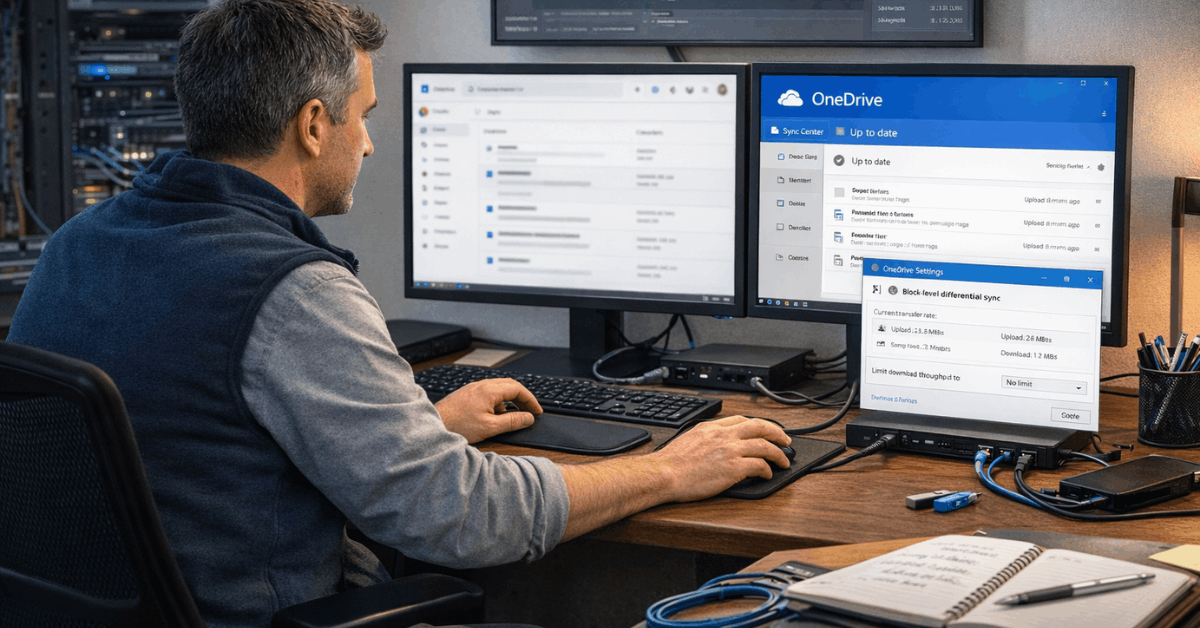
OneDrive uses block level sync on supported file formats. That means when you change a few cells in a large Excel file, OneDrive uploads only the changed blocks, not the entire file. Large Office documents update noticeably faster under this model.
Google’s desktop client typically re-uploads more of the file for non-native formats. But Google Docs, Sheets, and Slides skip local sync entirely because editing stays cloud-native.
There is no local file to re-upload. This is a genuine architectural difference that most comparison articles gloss over: Google avoids the sync problem by keeping native files in the browser, while Microsoft solves it through smarter delta transfers.
Teams working with CAD files, media projects, or large spreadsheets that change frequently will feel OneDrive’s differential sync save real time and bandwidth. Teams living in Google’s native editor rarely think about sync at all.
Also read: Zoom vs Google Meet: Which Service Has Fewer Limitations?
Google Drive Search Operators vs OneDrive Search
File search is where I think Google Drive earns its strongest long-term advantage, and I disagree with the popular advice to “just pick the ecosystem you already use.” The search gap should override ecosystem loyalty for anyone managing more than a few hundred files.
Google Drive advanced search operators like owner:, to:, from:, and type: let power users filter results with precision. Auto-suggest fills in as you type, and content matching works inside documents.
That means you can search for a phrase you remember writing, and Google will surface the file even if the filename is gibberish.
OneDrive search has improved and can tag photos using AI. But its operator depth remains thinner. Power users still end up browsing by folder path or remembering exact filenames more often. Over a three-year contract, those extra 10 seconds per search add up to hours of lost productivity across a team.
Security and Recovery: What Protects Files After an Attack
Both platforms encrypt data at rest and in transit, support multi-factor authentication, and enforce tenant-level security controls. The baseline is strong on both sides. The real split shows up in what happens after something goes wrong.
OneDrive Ransomware Recovery
OneDrive includes a ransomware recovery tool and Files Restore that can roll an entire library back up to 30 days. If malware encrypts your files or a bulk deletion wipes a shared folder, this tenant-wide rollback can undo the damage without hunting file by file.
That 30-day window is generous. It gives teams time to detect an incident, investigate, and restore cleanly.
Google Drive Version History
Google Drive keeps version history for non-Google file types: up to 100 versions or 30 days by default. Named versions can be preserved longer. For collaborative drafting in Docs or Sheets, the version history is granular and easy to browse.
The catch: Google does not offer the same one-click “roll back everything” feature that OneDrive provides. Recovery after a major incident requires more manual effort, file by file. Labeling milestones as “keep forever” versions helps, but it demands discipline your team may not have on day one.
Neither platform replaces a true off-platform backup. If regulatory retention or disaster recovery standards require independent copies, a third-party backup solution is still necessary regardless of which platform you choose.
Critical protections to evaluate on either platform:
- Ransomware rollback scope: OneDrive covers tenant-wide restore; Google Drive handles file-level version history
- Encryption options: Google Workspace supports client-side encryption where organizations hold their own keys; OneDrive Personal has a Personal Vault with step-up authentication and BitLocker
- Zero-knowledge encryption: Neither platform defaults to it. Privacy-focused workflows may need client-side tools to pre-encrypt files before upload
- Recovery testing: Mature teams should test restores and exports periodically, not just assume they work
When Google Drive Wins and When OneDrive Wins
Picking the right platform depends on your daily tools, team size, and the types of files moving through your workflow. A few scenarios make the choice clear:
- Personal storage and photos on a budget: Google’s 15 GB free tier and clean 2 TB plan are hard to beat
- Teams already deep in Microsoft 365 with SharePoint and Teams: OneDrive’s desktop shell integration and centralized admin controls keep permissions consistent across every app
- Real-time co-editing in Docs and Sheets across mixed devices: Google Drive is the center of gravity, and Google Workspace Marketplace connects hundreds of third-party add-ons for project management, e-signatures, and analytics
- Large files that change often, like CAD or media projects: OneDrive’s differential sync model reduces bandwidth and upload time
Many organizations end up running both. Google Drive handles collaborative drafting while OneDrive manages Windows-centric archives and departmental shares. That hybrid approach works if you set clear folder conventions and sharing defaults early.
Migrating Between Google Drive and OneDrive Without Losing Files
Cross-platform moves break things when they are rushed. A phase-wise migration protects permissions, timestamps, and sharing structures.
Pilot the migration with two or three teams first. Lock down sharing temporarily to prevent drift during the move. Then codify folder naming conventions, version labeling rules, and sharing defaults before rolling out company-wide.
Both ecosystems support data export: Google Takeout and Workspace admin tools on one side, OneDrive plus SharePoint content export on the other. Testing exports periodically is cheap insurance against policy changes that could quietly limit data portability down the road.
Questions People Ask About Google Drive vs OneDrive
Q: Can I use Google Drive and OneDrive at the same time?
Absolutely. Many teams run both platforms in parallel. The trick is assigning clear roles to each: one for collaborative editing, one for archival storage. Mixing purposes without rules creates duplicate files fast.
Q: Does OneDrive sync faster than Google Drive?
For large Office files, yes. OneDrive’s block level sync uploads only changed portions of a file, which saves time on big spreadsheets or presentations. Google sidesteps the issue for its native file types by keeping editing in the browser.
Q: Is Google Drive more secure than OneDrive?
Both platforms meet enterprise security standards and offer encryption at rest and in transit. Google Workspace allows client-side encryption where organizations hold their own keys. OneDrive Personal has a Personal Vault with extra authentication. Neither is inherently safer; configuration and team habits matter more than the platform itself.
Q: What happens to my files if I stop paying for Google Drive or OneDrive?
Google keeps your files but limits functionality once you exceed the free 15 GB tier. OneDrive drops you to 5 GB free, and files over that limit become read-only. Neither deletes files immediately, but prolonged inactivity on a free account can eventually trigger cleanup policies. Check the current terms on each platform before downgrading.
Q: Which is better for small business teams in 2026?
Microsoft gives more storage per dollar at the entry business tier: 1 TB per user versus 30 GB pooled at Google’s starter level. But Google’s search operators and Workspace Marketplace add-ons may save more time over a multi-year period than the extra storage saves in cost. The right pick depends on whether your bottleneck is space or speed.
Conclusion
Cloud storage reliability comes down to sync behavior, search speed, recovery tools, and pricing stability over time. Google Drive gives individuals and search-heavy teams the strongest long-term advantage at the personal tier.
OneDrive earns its place for Microsoft-centric organizations that need fast delta sync on large files. The smartest teams test their backup exports once a quarter and never assume that either platform is the whole plan.