A useful Figma performance review starts with the work designers must finish under pressure, not a generic device ranking. Product teams need smooth canvas movement, reliable prototype playback, and files that do not freeze during workshops.
Figma handles demanding interface work, but speed changes when files collect oversized images, deep component nests, and decorative motion. This guide explains what creates lag and what to test before deadlines.
What Actually Slows A Figma File?
Slowdowns rarely have one obvious cause. They build when file complexity and device limits meet in the same busy project.
Heavy Libraries Create Hidden Memory Pressure
A design system becomes harder to use when one library stores every retired component, state, and experiment. Deeply nested instances, broad variant sets, and pages full of inactive concepts increase memory pressure before anyone starts editing.
Keep the active library focused on patterns the team ships, and move old explorations into an archive file. That also makes search results clearer and tells new contributors which page is safe to edit.
Images And Effects Add More Than Visual Detail
Large raster assets can slow a file even when the interface looks simple. Import images at a sensible size for the screen or prototype under review, rather than dropping full-resolution originals into every page.
Background blur, repeated shadows, and layered transparency can add rendering work during panning and playback. Use lighter effects early, then add polished visuals to screens stakeholders truly need to approve.
Choose Hardware For The Work, Not The Logo
A newer computer helps, but it cannot rescue an overloaded workspace. The practical question is whether the device supports daily editing inside a demanding workday setup.
Full Computers Remain Better For Deep Editing
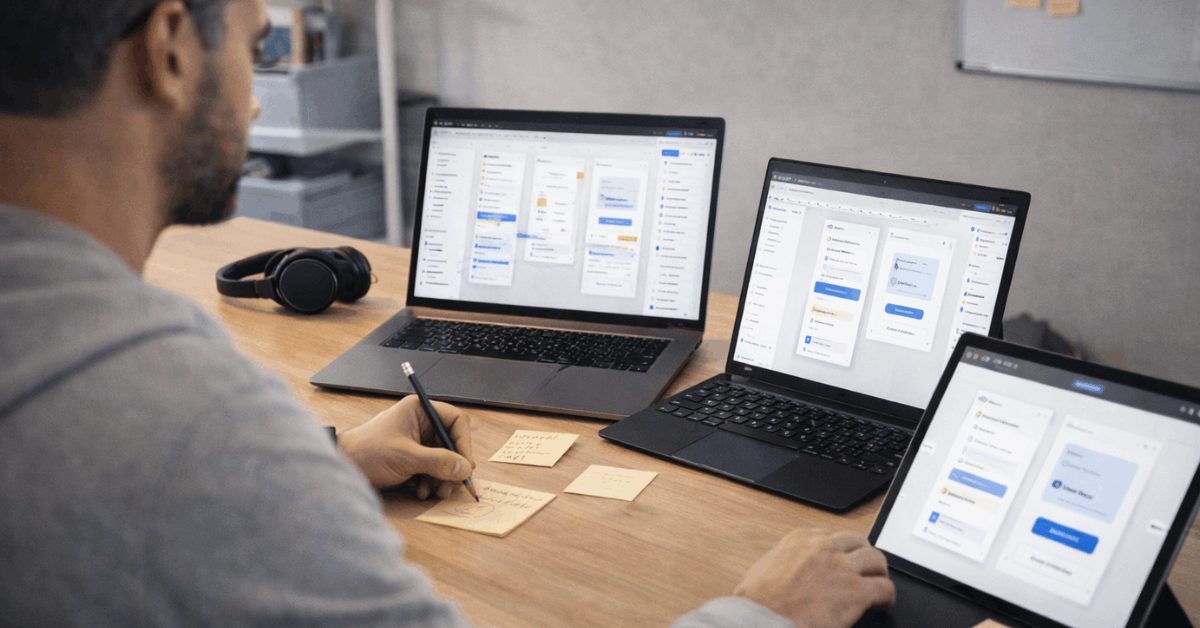
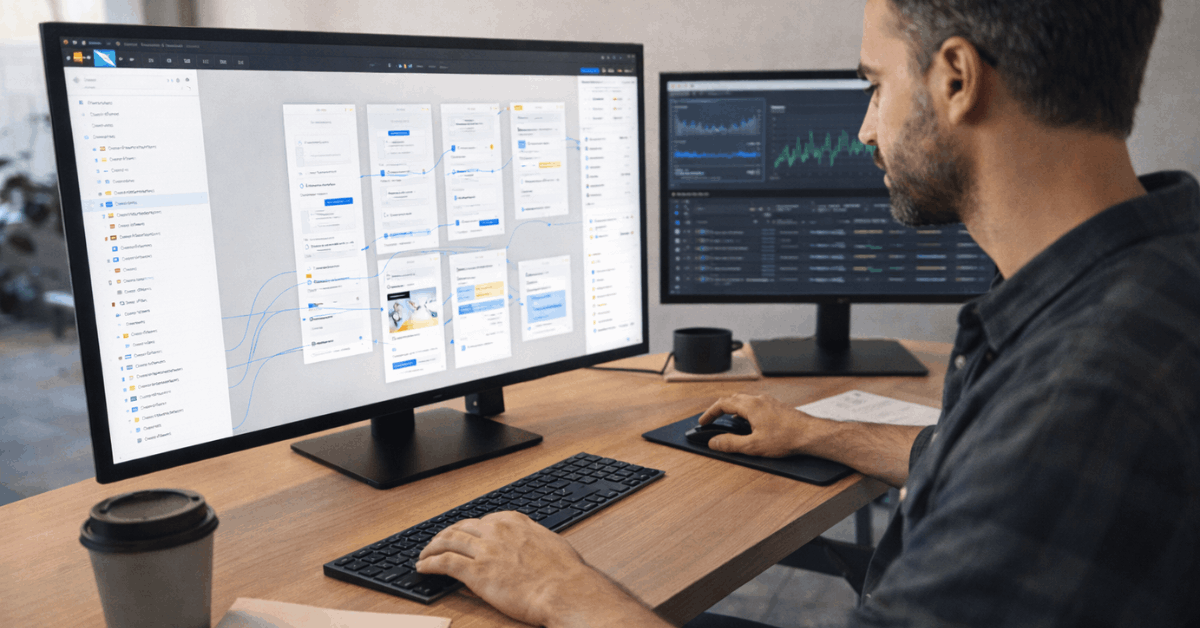
Mac and Windows laptops or desktops are more comfortable for maintaining libraries, adjusting complex layouts, and preparing developer handoff. Extra screen space supports side-by-side work when a designer compares requirements, components, and prototype behavior.
Tablets suit comments and presentations but remain review devices for large projects. Heavy restructuring, bulk cleanup, and detailed library maintenance remain faster on a full computer.
Also Read: Webflow Tool: What Breaks First in Real Usage
Browser Settings Can Matter During Workshops
Figma works in supported browsers and desktop apps for macOS and Windows. In a browser, graphics acceleration and WebGL should be enabled, while outdated extensions or battery-saving settings can disrupt a live session.
Close animated tabs and connect the laptop to power before opening a complex prototype. This gives the graphics system more room and reduces unexpected stutter during important client presentations and workshops.
Use Responsive Features Without Making Everything Heavy
Auto Layout, constraints, and variants reduce duplicated screens and keep common patterns aligned. Their value depends on clear rules and limited combinations that teammates can understand without asking for help.
Build Components Around Real Product Decisions
Variants should represent states people actually use, such as size, status, or a selected option. A button collection with meaningful combinations is easier to find and update than a giant component set with dozens of near-identical choices.
Use Auto Layout for content changes and responsive behavior, not as an elaborate puzzle inside every small frame. Split a pattern when handoff becomes difficult to explain.
Keep Prototype Motion Focused On The Task
Interactive components and overlays help reviewers understand a path without building a fully animated product. Trouble begins when each screen includes many triggers, long transitions, and visual effects that do not change the decision being tested.
Ask whether each interaction proves user flow, content priority, or a required error state. Remove motion that only decorates the screen because it can distract reviewers and strain playback.
Fix A Slow File Before A Workshop
Do not discover lag during a live critique, where the team cannot quietly solve it. A short performance check protects the team’s time and the credibility of the work.
Isolate The Page That Causes The Delay
Duplicate the problem page, remove half its frames, and replay the prototype. If it becomes smoother, keep narrowing the test until the slow section is obvious.
This exposes an oversized image, effect-heavy frame, or deep component stack without rebuilding the project. Save the cleaned version so the practical fix survives beyond the current sprint.
Use A Small Pre-Workshop Checklist
Before a high-stakes prototype review, check likely avoidable issues. The goal is predictable playback and clear review time, not a perfect technical setup. A quick check takes minutes and prevents a presentation from becoming a troubleshooting session.
- Charge the presentation laptop.
- Close unrelated browser tabs.
- Preload the critical prototype.
Set Team Habits That Prevent Lag
Performance is easier to protect when file maintenance becomes normal design work. Small routines preserve shared speed and usable libraries better than major cleanups.
Divide Large Projects Into Clear Working Areas
A single file becomes a dumping ground when every feature, test, and archive page stays open indefinitely. Separate active work by feature or milestone, then keep foundations in a library with a clear owner.
This speeds navigation and prevents edits to an outdated screen during a time-sensitive release. It also clarifies what is ready for engineering or stakeholder review.
Test On The Weakest Common Setup
A flow that feels smooth on a high-spec machine may still struggle on the oldest laptop or tablet used by the team. Test key prototypes there, especially when people use a browser or unreliable connection.
Figma needs a stable connection for real-time collaboration, though selected prototypes can be prepared for offline presentation in advance. This avoids last-minute surprises and gives facilitators a more honest view of the experience across ordinary devices.
Conclusion: Make Speed Part Of The Design System
Figma stays responsive when teams treat file structure as part of their product process, not background housekeeping. Keep images sized for their purpose, limit unnecessary variants and effects, and make prototype motion earn its place.
Test demanding flows on ordinary hardware before workshops, then archive inactive work before it clutters the active system. Those habits protect creative focus, reliable collaboration, and calmer work under deadline.