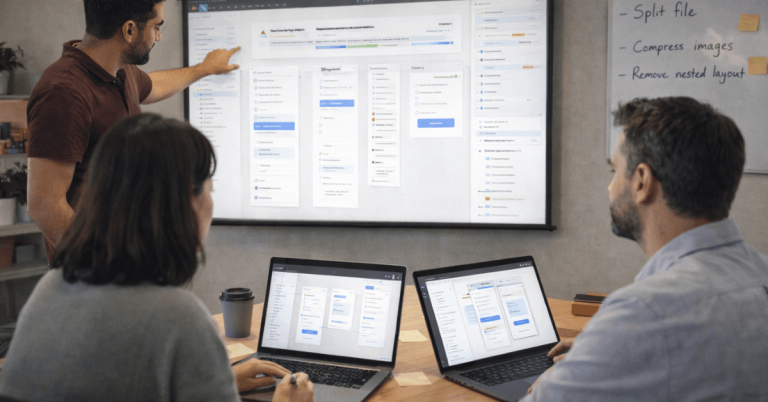
In fast-moving teams, setup friction kills momentum quickly. The Asana Setup Experience focuses on getting a basic workspace live, aligning a first project, and connecting the apps already in play.
The path stays straightforward when the plan fit is right and the first hour focuses on essentials. Asana Setup Experience appears friendly to newcomers while still offering depth for structured teams that want templates, rules, and reporting.
What Counts As A Smooth Asana Setup Experience
Speed to value matters most in week one. Clear roles, a single source of tasks, and an early win determine whether adoption sticks.

Asana supplies familiar list and board views, quick task assignment, and lightweight forms that funnel requests into a shared queue. Automation rules handle routine handoffs so manual updating does not swallow focus.
Quick Start: Account, Workspace, First Project
A first hour in Asana benefits from a simple, repeatable flow that eliminates indecision.
- Create an account, then name the space using the team’s real label so invitations feel credible.
- Open a project using Asana project templates, then rename sections to match your intake, doing, and review phases.
- Add five to ten tasks that already exist in email or chat so the new hub becomes useful immediately.
- Assign owners and due dates, then add one or two custom fields such as Priority and Stage to support sorting.
- Turn on a single automation rule that moves tasks to “In Progress” when assigned, keeping status fresh without extra clicks.
Default Settings That Matter On Day One
Notifications shape perception during rollout. Digest emails help managers, while real-time pings fit owners handling short-cycle work. Private projects keep sensitive initiatives contained until process discipline improves.
Unlimited free guests on paid tiers support occasional collaborators without consuming paid seats, which helps agencies and cross-functional teams during onboarding.
Views, Fields, and Automation For New Teams
List view suits structured backlogs, while board view shows flow clearly during standups. Timeline and Gantt arrive when planning multi-step campaigns where dependencies matter.
Asana onboarding checklist items should include adding custom fields, turning on a minimal set of Rules, and pinning a saved search that filters “My team’s overdue tasks.”
These small decisions prevent clutter and make progress visible to stakeholders who only check dashboards weekly.
Integrations That Speed Up Setup
Early connections eliminate app-switching and keep adoption high. A tight Asana integrations list usually starts here:
- Slack or Microsoft Teams to convert messages into tasks and post updates in a channel.
- Google Drive or OneDrive to attach working files without copy duplication.
- Google Calendar or Outlook to surface due dates on personal calendars.
- Zoom to attach meeting links to tasks that represent reviews or handoffs.
- HubSpot or Salesforce on higher tiers to trigger tasks from deal stages or approvals.
Pricing and Feature Gates That Affect Setup
Teams evaluating the first thirty days should map plan names to setup features, since Asana renamed tiers in 2025 and moved several capabilities.
As of 2026, plan names and headline differences are:
| Plan | Annual Price (Per User) | Setup Highlights Relevant In Week One |
| Personal | Free | 2 users, unlimited tasks and projects, list/board/calendar, integrations via apps. |
| Starter | $10.99 | Timeline and Gantt, custom fields, forms, workflow builder, unlimited automations, private projects, unlimited free guests. |
| Advanced | $24.99 | Goals, portfolios, portfolio workload, advanced approvals and proofing, native time tracking, major BI and CRM integrations. |
| Enterprise | Custom | Resource management, SAML, SCIM, admin controls, security additions for larger programs. |
Asana is also transitioning legacy Premium and Business customers to Starter and Advanced, which explains older naming in screenshots or guides.
Mobile and On-The-Go Setup
Field teams and managers often update work between meetings. Asana mobile app setup remains quick, and mobile supports task creation, comments, attachments, and status changes without opening a laptop.
Calendar and inbox views on phones keep single-owner tasks moving, which reduces status gaps during busy days.
First-Week Playbook
A focused rollout plan keeps scope contained while behavior changes take hold.
- Day 1: Import the live backlog, archive stale items, and assign owners and dates for anything active.
- Day 2: Add forms for requests, connect Slack or Teams, and post a short “how we use Asana” note.
- Day 3: Introduce Timeline for planned work, then set dependencies for tasks that routinely block others.
- Day 4: Create a dashboard with completion rate, overdue count, and items blocked, then share it at standup.
- Day 5: Capture feedback, trim notifications, and document two automation rules that saved the most time.

Common Setup Pitfalls and Fixes
Too many projects cause fragmentation when a single project with sections would do. Start lean, then split later.
Excessive custom fields create noise; keep two or three fields that directly drive decisions, such as Priority, Stage, or Estimate. Private one-to-one tasks hide work from reviewers; move approvals into visible tasks with a clear checklist so status reporting stays honest.
Overreliance on email undermines adoption; log action items in Asana during meetings, then comment instead of forwarding threads.
Time Tracking and Reporting In Early Stages
Several teams want lightweight tracking without building a separate system. Asana time tracking options now include native tracking on Advanced, which records effort at task level and feeds workload views.
Starter and Personal users can rely on integrations that sync entries into tasks for basic reporting. Saved reports highlighting overdue tasks, items without assignees, and cycle time by Stage keep retrospectives evidence-based.
Applying Asana Across Team Types
Marketing teams use Timeline for launches, creative proofing on assets, and forms for intake. Product and engineering groups track sprints on boards, then switch to Timeline when mapping releases across quarters.
Operations leaders value portfolios for cross-functional initiatives and Asana workspace setup that mirrors how departments actually collaborate.
HR and Finance deploy forms for requests and recurring tasks for close calendars or onboarding checklists, which stabilizes handoffs.
Advanced Features To Consider After Week One
New users should stay focused, then layer advanced options once basics feel natural. Goals connect key results to projects so leaders can see progress without another slide deck. Portfolios group projects by initiative so directors catch blockers faster.
Forms branching on Advanced adapts questions dynamically, which improves intake quality and reduces back-and-forth. Locking custom fields protects reporting consistency across projects that share a taxonomy.
Conclusion
Asana setup lands in the approachable category for small teams and remains scalable for larger programs that need portfolios and goals.
Templates supply a useful starting point, automation rules remove repetitive nudges, and integrations reduce friction across chat, docs, and calendars.
Plan selection influences the first sixty minutes, since Timeline, custom fields, and unlimited automations accelerate structure immediately on Starter. Large groups unlock native time tracking and portfolio controls on Advanced, which turns onboarding into a repeatable system rather than a one-off project.