Canva can work well on modest devices, but performance depends on more than the tool itself. Browser health, device memory, network stability, project size, and asset weight all shape the editing experience.
Teams with limited resources usually get better results by keeping designs lean, uploads controlled, and AI use intentional. The goal is not to avoid Canva, but to use it in a way that matches the hardware and connection available.
What Limited Resources Mean in Real Canva Work?
Limited resources usually show up as older laptops, budget phones, shared Wi-Fi, and projects with heavy images or videos. Canva may feel smooth for simple designs, then slow down when page counts, fonts, uploads, and layered media increase.
This makes project discipline more important than random troubleshooting. A smaller, cleaner design file usually performs better than a visually crowded file with oversized assets.
Low-Spec Devices Need Lean Projects
A laptop with limited RAM can struggle when several Canva tabs, large designs, and other browser apps are open at the same time. The editor may still work, but typing, dragging, previewing, and switching pages can feel slower. ]
Budget smartphones are better for comments, quick text edits, approvals, and basic resizing than heavy timeline work. Complex video edits and multi-layer designs should be saved for the strongest available device.
Slow Networks Affect Uploads and Exports
Weak or unstable internet usually hurts Canva most during uploads, autosaves, and exports. A design may edit normally, but large media files can stall or retry when the connection dips.
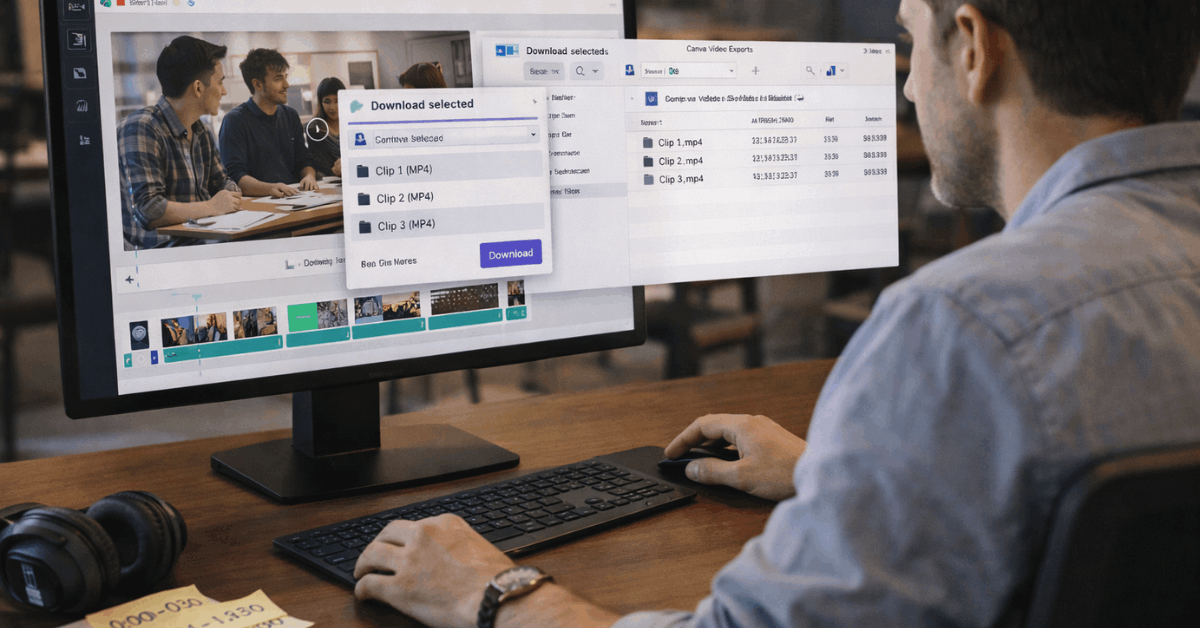
Video projects are especially sensitive because they combine asset weight, processing time, and network reliability. Smaller source files and realistic export targets reduce the chance of failed sessions.
Set Up a Fair Canva Performance Test
Testing Canva performance should be simple and repeatable. Use the same browser, device, files, and export targets so results are easy to compare.
A fair test helps you know whether the problem is the design, the browser, the network, or the device. Without consistent rules, every slowdown becomes guesswork.
Also Read: Real-Use Testing on Slow Connections

Keep the Test Conditions Consistent
Start with one supported, updated browser and keep only one active Canva tab open. Disable heavy extensions, close unused apps, and keep hardware acceleration enabled if it works well on the device.
Test the same project types, such as a short presentation, a one-page print file, and a short social video. This makes performance differences easier to track across devices and connections.
Measure What Users Actually Feel
The most useful signals are time to first edit, preview smoothness, upload delay, export duration, and crashes or reloads. These are the moments that affect real work, especially when a team is racing a deadline.
Perfect technical metrics matter less than whether the tool stays usable and predictable. A simple log can reveal which files, assets, or actions create the most friction.
Features That Affect Canva Speed
Some Canva features stay light, while others add more processing pressure. Templates, grids, frames, text, AI features, comments, and video timelines all affect performance differently.
The goal is to choose the tools that support the design without overloading the file. Canva works best on limited resources when the structure stays clean.
Use Templates, Grids, and Text Carefully
Templates can save setup time, but large design systems with too many brand variations can slow the workspace. A tight Brand Kit with a few fonts, colors, and approved layouts keeps work consistent without creating bloat.
Grids and frames are useful because they keep image placement organized and easier to repeat. Clean text styles also reduce layout confusion and make editing faster.
Pace AI and Collaboration Features
AI tools can save time, especially for copy, background removal, image ideas, and quick format changes. They may also add waiting time, usage limits, or processing pauses depending on the plan and task.
Collaboration features are useful for comments and approvals, but multiple people editing a heavy file can increase sync activity. For large exports, it is better to limit active editors and let autosave finish before continuing.
Practical Optimizations That Actually Help
Most Canva slowdowns can be reduced with better project habits. Teams often lose time because they upload huge files, keep too many fonts, or build designs with unnecessary layers.
These issues become worse on older devices and shared internet. A few simple habits can make the editor feel much more stable.
Use these quick fixes before blaming the device:
- Use one main font family with limited weights.
- Resize oversized images before uploading them.
- Split long videos into shorter scenes.
- Batch AI tasks instead of running them after every small edit.
- Use grids and frames instead of messy overlapping layers.
Optimize Assets Before Uploading
Large images and videos are one of the biggest causes of lag. A social post does not need an oversized photo if the final output is small.
Shorter video clips are easier to preview, edit, and export than one heavy timeline. Preparing assets before upload saves time later because Canva has less to process during editing.
Troubleshoot the Right Bottleneck
Typing lag often points to browser memory or too many open tabs. Upload loops usually point to network weakness, file size, or video format problems.
Slow brand files may come from too many fonts, templates, or unused assets inside the workspace. If AI processing feels stuck, pause extra requests and finish one batch before starting another.
Limits That Matter for Professional Work
Canva is convenient, but it is not the right tool for every production requirement. Teams should understand output limits, licensing rules, file handoff needs, and plan-based feature differences before promising final delivery.
These details matter more when designs are used for clients, print, paid campaigns, or public websites. Clear expectations prevent last-minute rework.
Know Output and Licensing Constraints
Print work needs special care because screen colors and final print colors may not match perfectly. If color accuracy matters, use print-ready export settings when available and confirm requirements with the printer.
Stock media and public web use may also include licensing rules that affect how assets can be displayed. Teams should check usage rights before publishing high-resolution or client-facing work.
Use Specialist Tools for Precision Work
Canva is strong for fast design, social content, presentations, templates, and lightweight collaboration. It is less ideal for advanced compositing, high-end video finishing, complex masking, or strict prepress control.
In those cases, a professional editing tool may handle the heavy work better. Canva can still remain useful for scaling, adapting, and distributing finished assets.
Conclusion
Canva can perform well on limited resources when projects stay focused, assets are optimized, and exports match the real use case. The biggest improvements usually come from reducing file weight, limiting unnecessary fonts, and avoiding oversized video timelines.
Teams should also plan AI usage, collaboration, licensing, and print requirements before the deadline arrives. With disciplined setup and realistic expectations, Canva can remain a practical design tool even on modest devices and uneven networks.