Microsoft Edge is often promoted as a browser with built-in performance tools such as Sleeping Tabs, Startup boost, and Efficiency mode.
These features are designed to make the browser feel faster, use fewer resources, and stay more responsive during everyday work. In real use, the results depend on the device, settings, workload, extensions, and how many active tabs stay open.
The strongest test is not a single benchmark, but how the browser behaves during a normal day of email, documents, research, video, and multitasking.
How Real-Use Browser Testing Was Measured?
Real-use testing needs a stable setup because browser speed can be affected by more than the browser itself. Operating system updates, power settings, drivers, background apps, and extensions can all change the result.
That is why the test should focus on repeatable actions instead of one dramatic number. The goal is to understand when Edge’s performance features help and when daily habits reduce their effect.
Track the Same Daily Workload
A useful test should mirror the way people actually browse. This means keeping common work tabs open, such as email, documents, dashboards, research pages, video sites, and web apps.
Switching between a heavy tab and a light tab is often more revealing than loading one empty page quickly. If the workload changes every day, it becomes harder to know whether the browser improved or the test simply changed.
Watch What Humans Feel First
Performance is not only about memory charts or lab scores. People notice the first click after launch, slow tab returns, scroll stutter, typing delays, and brightness of video playback.
These moments matter because they affect whether the browser feels smooth during real work. Logging those repeatable moments gives a more practical picture than chasing perfect benchmark results.
Where Microsoft Edge Feels Fast?
Microsoft Edge often feels strongest when the goal is getting into work quickly and keeping many tabs under control.
Its performance story is less about one page loading faster than every competitor and more about reducing slow moments during longer sessions.
Startup boost, Sleeping Tabs, and resource controls can help the browser feel more available. These tools matter most when the device is already carrying a normal workload.
Startup Boost Helps With First Use
Startup boost is designed to make Edge open faster by keeping some browser processes ready in the background. In real use, this can make the browser feel more immediate when opened during a busy workday.
The benefit is usually easier to notice when the computer is not already overloaded. If many apps are launching at the same time, the improvement may feel smaller.
Sleeping Tabs Can Reduce Pressure
Sleeping Tabs are designed to pause inactive pages so they use fewer system resources. This can help when many tabs stay open for research, dashboards, shopping, or unfinished tasks.
The biggest benefit appears when several tabs are truly inactive and can be put to sleep without interrupting active work. If most tabs are constantly refreshing or running web apps, the savings may be less obvious.
Where Claims Become More Complicated?
Performance claims often sound simple, but daily browsing is messy. A feature can reduce memory use and still not make the browser feel dramatically faster if the device is limited by disk speed, low RAM, or heavy extensions.
Efficiency features can also trade some smoothness for better resource control. This is why the best reading of performance claims is practical, not absolute.
Efficiency Mode Has Tradeoffs
Efficiency mode is built to reduce resource use, especially when battery life or system load matters. This can be helpful on laptops during long browsing sessions or when many tabs are idle.
The tradeoff is that some animations, video playback, or heavy pages may feel less smooth. A setting that helps battery life can still feel slower if the work depends on visual responsiveness.
Also Read: How Predictable ClickUp Is in Daily Use
Extensions Can Hide Browser Gains
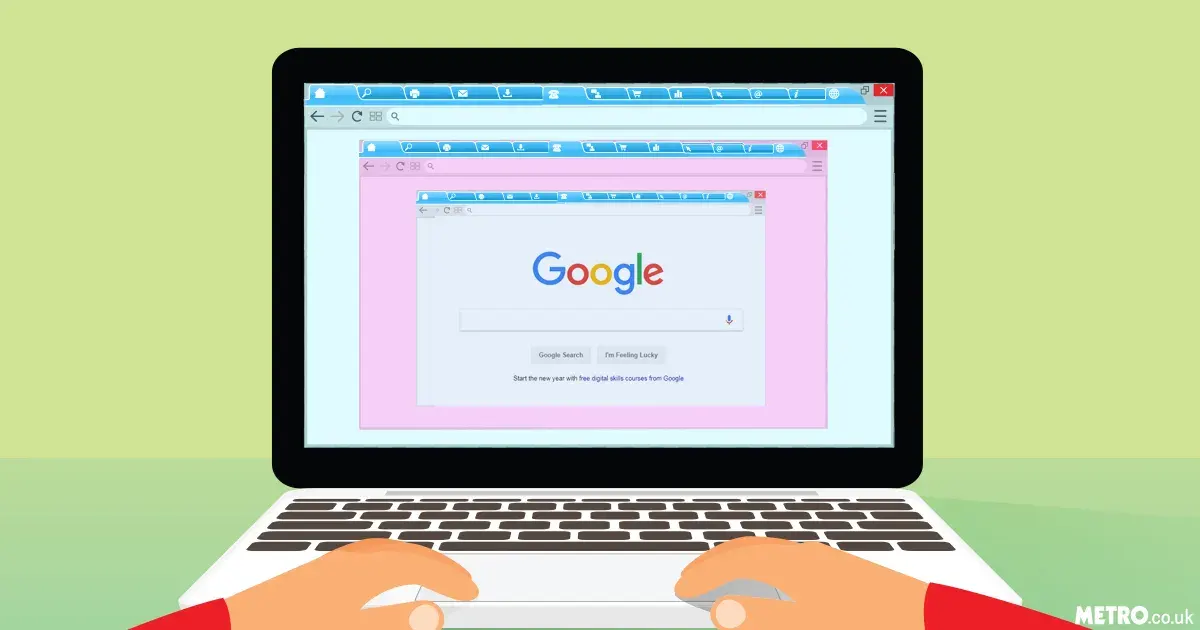
Extensions are one of the easiest ways to weaken browser performance. A password manager, ad blocker, grammar tool, shopping extension, or productivity add-on can behave like a small app inside the browser.
If several extensions run at once, they may reduce the benefit of built-in performance tools. Testing with and without extensions can show whether Edge is slow or the browser environment is overloaded.
What Matters Most During Tab-Heavy Work?
Many people judge browser speed by how well it handles a messy session. A normal day may include pinned tabs, background music, messaging apps, research pages, and repeated tab switching.
In this kind of workload, Edge’s practical advantage comes from how well it manages resources over time. Smoothness matters more than a single fast launch.
Tab Returns Are a Real Test
A sleeping tab should come back quickly enough that the pause does not disrupt work. If tab return feels slow, the resource saving may feel less helpful to the user.
This is especially true for heavy web apps that need time to reconnect, reload data, or redraw the interface. A good test should track whether tab sleeping saves resources without creating repeated friction.
First Paint Is Not the Full Page
A browser can show initial content quickly while the rest of the page continues loading. This makes the page feel responsive early, but it does not always mean the full site is ready to use.
Heavy pages may still spend time loading scripts, ads, media, dashboards, or interactive elements. Real performance should include both first visible content and the moment the page becomes usable.
Use this simple real-use check when judging Edge performance:
- Test after a clean reboot and again during a normal busy session.
- Keep the same set of tabs open for each comparison.
- Note when Startup boost, Sleeping Tabs, and Efficiency mode are on.
- Test with extensions enabled and then with unnecessary ones disabled.
- Watch for tab delays, scroll stutter, battery drain, and memory pressure.
Battery and Resource Behavior Need Context
Battery and resource savings are most useful when they match the user’s actual device. A laptop user who works unplugged may value Efficiency mode more than a desktop user with constant power.
Someone with low RAM may benefit more from Sleeping Tabs than someone with a high-end machine. The same browser feature can feel valuable or irrelevant depending on the setup.
Laptop Users May Notice More
Battery-focused features tend to matter more during long mobile sessions. If many tabs are open but not actively used, resource-saving tools can help the system feel calmer.
The improvement may show up as fewer fan spikes, less heat, or longer usable time rather than dramatic speed. If the laptop is plugged in all day, smoothness may matter more than power savings.
Older Devices Show Limits Faster
Older devices can reveal performance problems quickly because they have less room for waste. Low memory, slow storage, and background sync tools can erase the advantage of browser-level optimizations.
Edge may still help by sleeping inactive tabs, but it cannot fully overcome every hardware limit. In these cases, fewer extensions and better tab habits may matter as much as browser settings.
Conclusion
Microsoft Edge does offer practical performance tools that can help real browsing feel smoother. Startup boost, Sleeping Tabs, and Efficiency mode are most useful when the workload matches what those features are designed to improve.
Real-use testing also shows that results vary by device, extensions, battery settings, and the number of active tabs.
The fairest conclusion is that Edge can deliver meaningful performance benefits, but those benefits depend on how clean and consistent the browsing setup is.