Microsoft positions Edge as a browser with built-in performance helpers like Sleeping Tabs, Startup boost, and Efficiency mode.
For example, Microsoft says Sleeping Tabs can cut average memory use (reported as 32%) and reduce CPU use for sleeping tabs.
Microsoft also claims Startup boost improves startup time (reported as roughly 29%–41%) by keeping background processes ready.
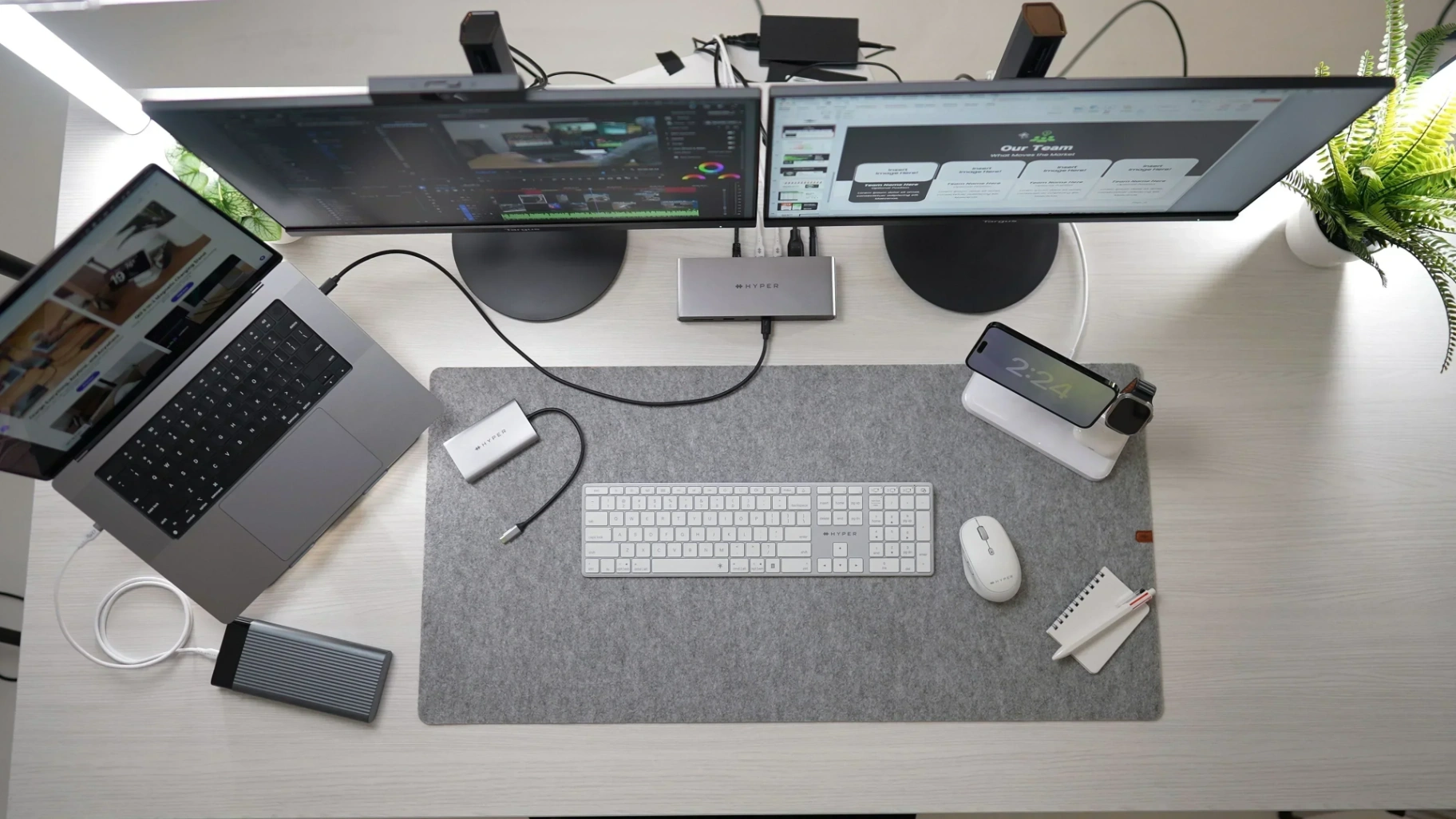
How the real-use test was run
Real-use testing only works if the setup stays stable, and the daily workload matters more than synthetic wins,
So, the focus stayed on startup, tab switching, scroll and input responsiveness, memory behavior, and battery impact during normal sessions.
Edge has features that can change results, so those settings were tracked instead of assuming “default” behavior.
The goal was to see when claims match real work and when they get diluted by real habits like multitasking and always-on tabs.
Devices, updates, and baseline rules
The same device and OS build were used for the full run. Browser performance is often really OS scheduling, drivers, and power profiles in disguise.
Edge and its components were kept updated normally, but the update dates were noted because major releases can change.
A baseline was captured with a clean reboot and a small set of tabs, so later “slow feelings” could be compared against a known fresh state.
Daily workload that mirrors normal use
The core workload was a mix of email, docs, dashboards, research, video, and long-running web apps with frequent tab changes and occasional downloads.
To test “responsiveness,” the focus stayed on actions that humans feel, switching between a heavy app tab and a light tab.
Inactive tabs were intentionally left open to see whether active work stayed smoother over time.
Logging what “performance” means in real use
Instead of chasing perfect numbers, the log tracked repeatable moments like “first click after launch,” “tab returns,” and “UI stutter” during routine scrolling.
Memory and CPU behavior were observed during daily spikes, because performance claims only matter when the system is under pressure.
Settings changes were written down immediately, because toggling Efficiency mode or sleeping timing can explain a “suddenly slower” week better.
What real use shows about Edge speed
Edge often feels fast when the metric is “how quickly you can start doing work,” and that lines up with Microsoft’s emphasis on faster starts and early rendering.
In day-to-day use, the biggest wins rarely look like dramatic page-load differences, and they look more like fewer slow moments.
The browser’s performance story is less about raw engine speed and more about resource behavior and Windows-leaning features.
That means the best evidence is not a single “fastest” moment, but the steady absence of lag spikes when the day gets messy.
Startup and “first usable moment”
Startup boost is designed to make Edge launch faster, and real use tends to reward that because browsers get opened in short bursts.
Microsoft ties Startup boost to quicker launch, and third-party reporting has echoed Microsoft’s claim range about startup improvements.
When Startup boost is on, Edge can feel more “ready” for the first task, but the benefit is most noticeable when the PC is not already busy.
Responsiveness during tab-heavy work
Sleeping Tabs are meant to pause inactive pages and release resources, and Microsoft describes them as reducing CPU usage to a minimum.
Microsoft has published specific internal-test figures over time (like the 32% average memory reduction and 37% CPU reduction for sleeping tabs).
Sleeping behavior can change how fast an inactive tab “wakes,” but Microsoft frames the point as returning quickly without a full reload.
Efficiency mode as a real-world lever
Efficiency mode is explicitly designed to reduce resource use, and Microsoft warns it can slow animations or make the video less smooth.
In real use, that warning matters because “performance” is not only about speed, but also about smoothness.
So the feature can be a win on battery-focused days, but it can also be a “why does this feel off?” setting if the workload is graphics-heavy.
Where performance claims feel weaker in real use
A claim like “releases memory” can be true while the browser still feels heavy, because users often run extensions that behave like full software.
Edge can also feel slower if “efficiency” settings don’t match the workload, because throttling can improve battery life while reducing perceived responsiveness.
Another real-use issue is that performance is often limited by the system, so slow disk, low RAM, or background sync tools can erase the advantage.
That is why strong claims should be read as “possible outcomes in the right setup,” not a guarantee that every user gets the same win on every device.
Tab sleeping helps, but it is not a magic fix
Microsoft’s numbers around Sleeping Tabs are meaningful, but they are still averages from internal or program-based observations.
Some tabs are designed to stay active, and those reduce the fraction of tabs that can truly “sleep,” which reduces the total benefit you get.
If your day is mostly “active tabs,” performance claims tied to sleeping behavior become less relevant.
“Fast” rendering does not mean full-page fast
Microsoft’s under-300ms rendering claim is about First Contentful Paint, which measures when initial content appears.
In real use, fast first paint improves perceived speed, but heavy sites can still take time to load scripts, hydrate UI, or finish media.
So the claim is useful for how Edge can feel snappy at the start, but it should not be treated as proof that every website will fully load faster than competitors.
Battery and power claims depend on your day
Microsoft and third-party coverage have discussed battery-saving features such as sleep and power-saving behaviors.
In real use, battery improvements show up more clearly on laptops with long sessions and lots of idle tabs, and less clearly on desktops.
If you are plugged in most of the day, battery wins matter less than smoothness wins.
Pros and cons that show up after sustained daily use
A real pro is that Edge gives you performance tools that are practical and visible, and you can actually feel them in tab-heavy days.
The “performance story” is not purely marketing language, because Microsoft provides specific mechanisms and has published measurable savings claims.
A real con is that the same tools can introduce tradeoffs, because Efficiency mode can reduce smoothness and make parts of browsing feel slower.
Another con is that performance claims can sound universal, but results vary by device, settings, usage, and other factors.
Conclusion
Real-use testing shows that Microsoft Edge backs many of its performance claims with features that genuinely reduce friction during everyday.
Claims around Startup boost, Sleeping Tabs, and early rendering hold up best when your daily habits match the conditions those features are designed for.
At the same time, real use reveals the limits of performance marketing, because efficiency features can introduce tradeoffs in smoothness.