In teams that feel stretched, canva tool performance becomes a practical question, not a hype line. Real-world results hinge on browser health, network stability, device memory, and how heavy the project assets are.
Expect smoother editing when designs stay lean, assets are optimized, and AI usage is paced rather than spammed. Current platform limits, plan features, and licensing rules also influence what you can ship confidently.
What Limited Resources Mean In Real Projects
Limited resources usually combine three constraints: modest CPUs and 4–8 GB RAM laptops, budget smartphones with shared memory, and variable home or café internet.

In practice, the editor performs fine on modern browsers, yet spikes in page count, large video uploads, and numerous third-party fonts quickly tax memory. Network dips then compound delays during autosave, asset uploads, and exports.
A focused project scope and disciplined asset prep do more for speed than toggling random settings.
Baseline Setup For Testing Canva Tool Performance
Short prep pays off because it standardizes comparisons across machines and networks. Keep the same project files, the same export target, and the same timing. Treat the steps below as a minimal, repeatable bench for low-spec scenarios.
- Use a supported, up-to-date browser, hardware acceleration enabled, one active Canva tab only. Clear cache and disable heavy extensions.
- Aim for stable connectivity, then measure upload speed; queue large uploads during off-peak hours.
- Lock a test set: a 10-page presentation, a 60-second social video, and a one-page print PDF. Keep assets identical across runs.
- Track export targets pragmatically: presentations to PDF Standard, videos to 1080p MP4, print to PDF Print.
- Log time-to-first-edit, preview responsiveness, export duration, and any editor crashes or reloads.
Key Features That Impact Speed
A handful of feature choices will swing perceived speed more than raw CPU. The notes below highlight what stays light and what gets heavy, so you select elements that fit low-resource constraints.
Templates and Brand Kits
Large template libraries accelerate starts, yet excessive brand variants and font families slow the editor and the browser font cache.
Consolidate to a tight Brand Kit and a handful of locked templates to preserve consistency without bloat. Canva surfaces massive content libraries on paid tiers, which speeds assembly when storage and asset access are not the bottleneck.
Grids, Frames, and Text
Grids, frames, and text holders sit among the most lightweight building blocks. Dropping images into frames or grids avoids ad-hoc cropping layers, and consistent text holders keep layout recalculations predictable. This approach keeps edit latency low on modest hardware while preserving design control.
AI Features In Magic Studio
Magic Write, background removal, and format transforms save minutes per task, although each AI call consumes credits on some plans and may add a brief processing pause.
Usage allowances vary by tier, and advanced features such as Canva Code or Dream Lab fall under premium AI buckets. Plan your AI bursts for batchable moments rather than scattering them across every minor tweak.
Collaboration and Cloud
Real-time comments and approvals reduce tool-hopping, yet heavy concurrent edits on asset-dense files increase sync churn. Keep one editor active while exporting large documents. On slow connections, prefer brief edit bursts, then pause to let autosave complete.
Performance On Low-End Devices And Slow Networks
Low resources do not yield poor results when projects are scoped realistically. A few patterns help you avoid common stalls and rework.
Low RAM Laptops
Expect browser tab thrashing when RAM is tight. Close other design tabs, keep page counts lean, and split multi-minute videos into sequences for separate renders. The desktop app’s Memory Saver, where available, helps reduce background usage by suspending inactive tabs.
Budget Smartphones
Mobile editing excels for light copy tweaks, basic crops, or quick resizes. Heavy timeline edits and multi-layer vector work feel sluggish on entry-level devices. Queue complex work for the desktop, then use mobile for approvals, comments, and minor fixes to keep momentum without needless lag.
Slow Internet Connections
Uploads and exports are the choke points. Compress source videos before upload, avoid multi-gig files, and keep image dimensions reasonable for the intended output.
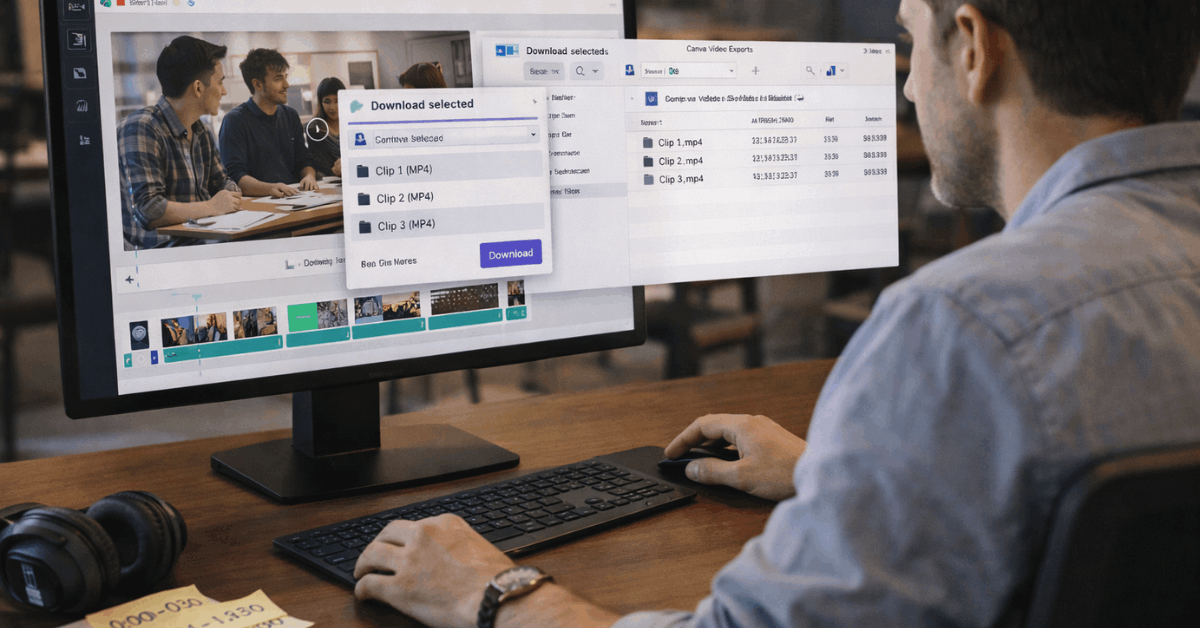
When network dips persist, drop export targets to 1080p for speed and reliability, since video exports currently top out at 1920×1080 for standard workflows.
Practical Optimizations That Actually Work
Smart guardrails eliminate most stalls and re-exports. Treat these as default habits in constrained setups.
- Keep one font family with limited weights, then lean on size, spacing, and hierarchy. Fewer fonts reduce render overhead.
- Replace oversized images with appropriately sized versions; avoid dumping 8K photography into social posts.
- Trim video timelines into scenes, export scene masters in 1080p, then assemble the final cut.
- Batch AI actions for copy, image variations, or background removals to control credit burn and spinner time.
- Favor grids and frames for repeat layouts; they’re faster to render than ad-hoc masked stacks.
Limits That Matter For Professional Work
Teams often hit non-obvious ceilings that affect brand control, licensing safety, and output fidelity. Knowing them upfront avoids costly do-overs.
Printing Color Management
RGB previews rarely match print output perfectly. CMYK-aware export options are available for print use on supported plans, so select print-ready profiles where provided and request a proof when color accuracy matters.
If CMYK export is unavailable in your plan or region, coordinate conversion with your print vendor.
Working Files and Handover
Cloud-first files simplify access and reviews, yet traditional “open files” for offline handover are not the default. Plan continuity by agreeing on exported interchange formats that your partners accept for archiving and versioning.
Licensing Rules That Affect Web Display
Unedited Pro stock embedded at high resolution on public webpages is subject to a 480,000-pixel cap unless the design is published via Canva’s website endpoint or embedded as a Canva-hosted design.
Keep large stock images edited, published via Canva Sites, or properly embedded to remain compliant.
AI Usage Limits Across Plans
AI access tiers differ. Free plans limit monthly use; paid plans raise thresholds; and certain premium generators, including Dream Lab and Canvas-to-Code-style features, consume pooled allowances. Monitor credit resets each month and budget generation bursts accordingly.
Quick Troubleshooting Matrix
Short diagnostics help you fix the right bottleneck first, instead of guessing.
| Scenario | Likely Constraint | Tell-Tale Symptom | Fast Fix | Export Target |
| 20-page deck drags while typing | Browser memory | Typing lag after long sessions | Hard refresh, clear cache, one Canva tab only | PDF Standard |
| 90-second video stalls at 70 percent | Network or codec | Upload spinner and retry loops | Pre-compress source, split timeline | MP4 1080p |
| Brand file opens slowly | Excess fonts | Long initial font load | Reduce font weights, cache warm-up | PDF Print |
| AI edits feel stuck | Credit throttling | Long “processing” waits | Batch AI jobs, avoid mid-edit spamming | Image or copy only |
| Website preview is jittery | Asset weight | Heavy GIFs or 4K source clips | Replace with compressed MP4 or static frames | MP4 1080p |
When To Move Beyond Canva
High-end video finishing, PSD-level masking, or long-form print with exacting prepress control are better handled in professional tools.
The Affinity suite’s deep editing and export control pair well when projects outgrow browser constraints, and recent integrations let premium Canva users call AI tools inside Affinity while keeping precision workflows intact. Treat this hybrid model as a step-up path rather than an either-or decision.
Last Thoughts
Limited hardware and uneven networks do not block quality outcomes when the scope is focused, assets are right-sized, and exports target realistic limits.
Templates, grids, frames, and disciplined Brand Kits keep editing responsive, while 1080p export targets and staged rendering sidestep most stalls.
Licensing and AI quotas set practical guardrails, so plan web image resolutions and monthly credits deliberately. For work that needs precision print control or advanced compositing, hand off the heavy lifting to Affinity, then scale and distribute in Canva.